- Security Fundamentals
- Authentication vs Authorization
- The Default Security Setup
- How RESTHeart Security Works
- Making Authenticated Requests
- Understanding HTTP Status Codes
- Understanding ACL Predicates
- Common Security Configurations
- File-Based Security (Alternative)
- Security Best Practices
- What’s Next?
Security Fundamentals
RESTHeart CloudSecurity Fundamentals
RESTHeart includes comprehensive security out of the box. This page covers the basics you need to know.
Prerequisites: - Introduction to RESTHeart - Core Concepts
Authentication vs Authorization
Authentication (AuthN) answers: "Who are you?"
- Verifies user identity
- Checks credentials (username/password, JWT token, API key, etc.)
- Results in a 401 Unauthorized if authentication fails
Authorization (AuthZ) answers: "What are you allowed to do?"
- Checks permissions for the authenticated user
- Verifies if the user can perform the requested operation
- Results in a 403 Forbidden if authorization fails
Example flow:
1. Client sends request with Authorization: Basic YWRtaW46c2VjcmV0
2. Authentication: RESTHeart verifies username and password → User is admin
3. Authorization: RESTHeart checks if admin can access the requested resource → Access granted
4. Request proceeds to the service
The Default Security Setup
RESTHeart comes pre-configured with MongoDB-based security:
Default Authenticator: mongoRealmAuthenticator
Stores user credentials in the MongoDB /users collection.
User document structure:
{
  "_id": "admin",
  "password": "$2a$10$...",  // bcrypt hash
  "roles": ["admin"]
}
Default Authorizer: mongoAclAuthorizer
Stores permissions in the MongoDB /acl collection.
Permission document structure:
{
  "roles": ["admin"],
  "predicate": "path-prefix('/') and method(GET)",
  "priority": 1
}
The Default Admin User
RESTHeart creates a default user on first startup:
- Username: admin
- Password: secret
- Role: admin (configured as root role with full access)
⚠️ CRITICAL: Change the default password immediately!
$ curl -u admin:secret -X PATCH http://localhost:8080/users/admin \
  -H "Content-Type: application/json" \
  -d '{"password": "my-strong-password"}'
How RESTHeart Security Works
RESTHeart uses a pluggable security architecture. Everything is a plugin:
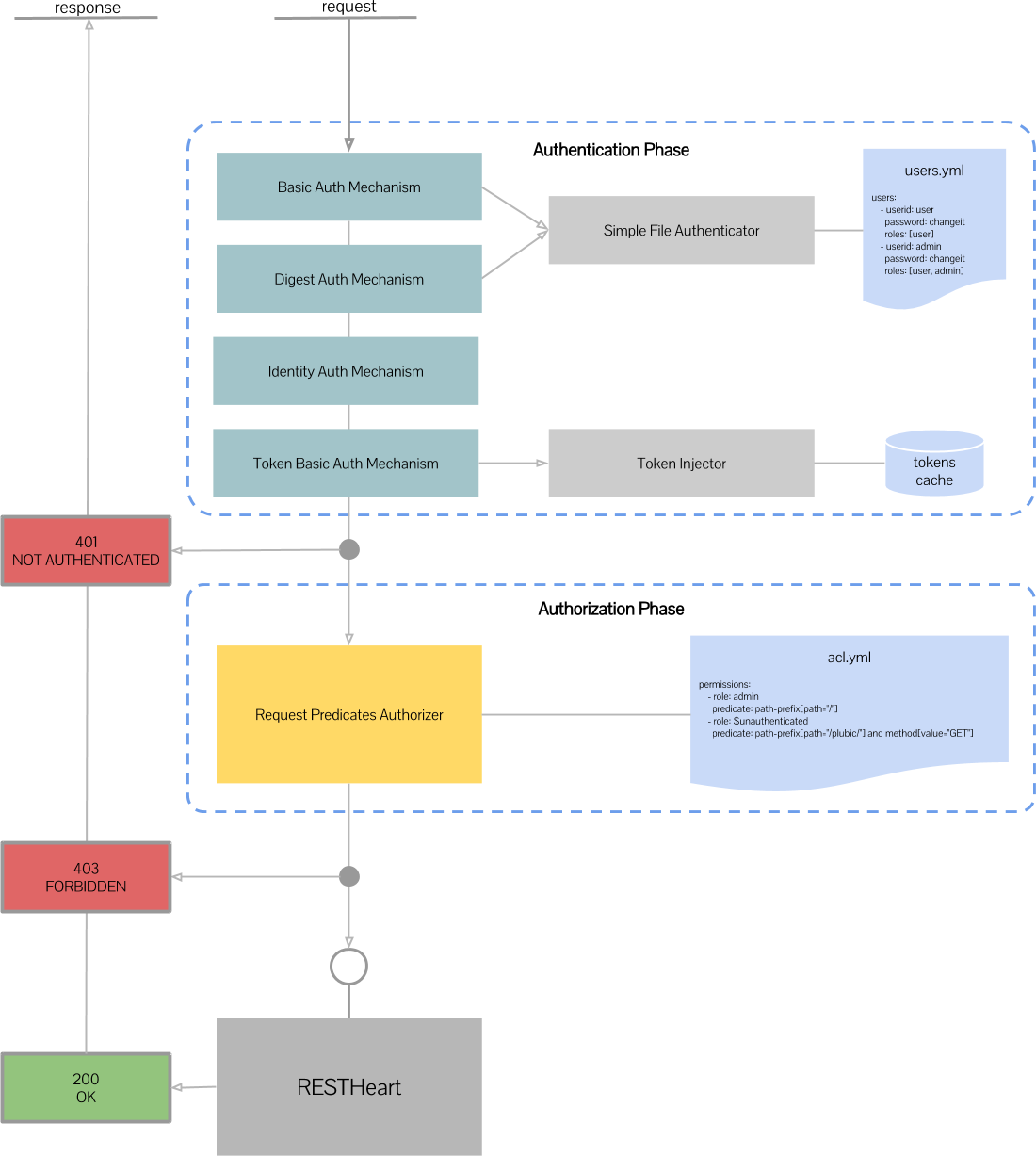
The layered approach:
Each request passes through multiple security layers: 1. Authentication Mechanisms extract credentials from the request (e.g., from headers) 2. Authenticators verify those credentials against a user store 3. Authorizers check if the verified user has permission for the requested action
This separation lets you mix and match - for example, use JWT authentication with MongoDB-based permissions.
The Security Flow
1. Request arrives
   ↓
2. Authentication Mechanisms extract credentials
   ↓
3. Authenticators verify credentials → Build Account
   ↓
4. Authorizers check permissions → Allow/Deny
   ↓
5. Request proceeds (if authorized)
1. Authentication Mechanisms
Purpose: Extract credentials from HTTP requests.
Built-in mechanisms:
- BasicAuthMechanism - Parses Authorization: Basic header
- JwtAuthenticationMechanism - Parses and validates JWT tokens
- TokenAuthenticationMechanism - Handles RESTHeart auth tokens
- IdentityAuthMechanism - Binds all requests to a fixed identity (testing/development)
How it works: 1. Mechanism extracts credentials (e.g., username/password from Basic Auth header) 2. Passes credentials to an Authenticator for verification 3. Multiple mechanisms can be configured
Example: BasicAuthMechanism extracts:
Authorization: Basic YWRtaW46c2VjcmV0
                     ↓ (base64 decode)
                username=admin, password=secret
2. Authenticators
Purpose: Verify credentials and build the user Account.
Built-in authenticators:
- mongoRealmAuthenticator - Verifies against MongoDB /users collection
- fileRealmAuthenticator - Verifies against configuration file
- jwtAuthenticator - Validates JWT signatures and claims
How it works: 1. Receives credentials from Authentication Mechanism 2. Verifies credentials (checks password hash, validates token, etc.) 3. Builds an Account object with user ID and roles 3. Builds an Account object with user ID and roles 4. Returns the Account to RESTHeart
The Account object contains: - User ID - Unique identifier (e.g., "admin", "user123") - Roles - List of assigned roles (e.g., ["editor", "viewer"]) - Custom properties - Additional data your authenticator provides
This Account is then used by Authorizers to make permission decisions.
Example: mongoRealmAuthenticator checks:
1. Does user admin exist in /users collection?
2. Does the password hash match?
3. Returns Account with roles: ["admin"]
3. Authorizers
Purpose: Check if the authenticated user has permission for the request.
Built-in authorizers:
- mongoAclAuthorizer - Checks permissions in MongoDB /acl collection
- fileAclAuthorizer - Checks permissions in configuration file
How it works:
1. Receives the authenticated Account and the request
2. Checks if any ACL rule grants permission
3. Returns ALLOWED or FORBIDDEN
Example: mongoAclAuthorizer checks:
1. Find all ACL rules matching user’s roles
2. Evaluate predicates (path, method, etc.)
3. Return highest priority matching rule
4. Token Managers
Purpose: Generate and validate auth tokens for session management.
How it works:
1. After successful authentication, Token Manager generates a token
2. Token returned in Auth-Token response header
3. Client includes token in future requests
4. Token Manager validates token without re-checking credentials
Benefits: - Reduces authentication overhead - Enables stateless sessions - Custom token formats (JWT, opaque, etc.)
Making Authenticated Requests
Basic Authentication
The simplest method - send username and password:
$ curl -u admin:secret http://localhost:8080/mydb/mycollectionOr with explicit header:
$ curl -H "Authorization: Basic YWRtaW46c2VjcmV0" http://localhost:8080/mydb/mycollectionToken Authentication
Step 1: Authenticate and get token
$ curl -i -u admin:secret http://localhost:8080/ping

HTTP/1.1 200 OK
Auth-Token: 3uv0e1g09jfao3q37p8jt07oas
...
RESTHeart returns the token in the Auth-Token response header.
Token properties: - Stored client-side (your application must save it) - Default expiration: 15 minutes (configurable) - Validated without re-checking credentials - Not stored server-side (stateless) Step 2: Use token for subsequent requests
$ curl -H "Auth-Token: 3uv0e1g09jfao3q37p8jt07oas" http://localhost:8080/mydb/mycollectionJWT Authentication
Configure JWT authenticator and send JWT in header:
$ curl -H "Authorization: Bearer eyJhbGc..." http://localhost:8080/mydb/mycollectionLearn more: Authentication Methods
Understanding HTTP Status Codes
401 Unauthorized - Authentication failed - No credentials provided - Invalid credentials - Expired token
$ curl http://localhost:8080/mydb/mycollection

HTTP/1.1 401 Unauthorized
{"message": "Unauthorized"}
403 Forbidden - Authorization failed - Valid credentials, but insufficient permissions - User authenticated but not allowed to perform this action
$ curl -u user:password http://localhost:8080/admin/data

HTTP/1.1 403 Forbidden
{"message": "Forbidden"}
Understanding ACL Predicates
Predicates are conditions that determine when an ACL rule applies. They use a simple expression language.
Common predicate functions:
-
path-prefix('/data')- Matches URLs starting with/data -
path('/users')- Matches exactly/users -
method(GET)- Matches HTTP GET requests -
method(POST) or method(PUT)- Matches POST or PUT -
equals(@user._id, ${_id})- Compares authenticated user ID to URL parameter
Combining predicates:
- and - Both conditions must be true
- or - Either condition must be true
- not - Negates a condition
Example:
"predicate": "path-prefix('/api') and (method(GET) or method(POST))"This matches GET or POST requests to URLs starting with /api.
Learn more: Complete Predicate Reference
Common Security Configurations
Public Read, Authenticated Write
Allow anyone to read, require authentication for writes:
{
  "_id": "public-read",
  "roles": ["$unauthenticated"],
  "predicate": "path-prefix('/data') and method(GET)",
  "priority": 100
}
{
"_id": "auth-write",
"roles": ["user"],
"predicate": "path-prefix('/data') and (method(POST) or method(PUT) or method(DELETE))",
"priority": 100
}User-Scoped Data Access
Users can only access their own data:
{
  "_id": "user-own-data",
  "roles": ["user"],
  "predicate": "path-prefix('/users') and equals(@user._id, ${_id})",
  "priority": 100
}
This checks that the authenticated user’s ID matches the _id in the URL.
Role-Based Access
Different roles, different permissions:
{
  "_id": "admin-full",
  "roles": ["admin"],
  "predicate": "path-prefix('/')",
  "priority": 1
}
{
"_id": "editor-write",
"roles": ["editor"],
"predicate": "path-prefix('/content') and not method(DELETE)",
"priority": 10
}{
"_id": "viewer-read",
"roles": ["viewer"],
"predicate": "path-prefix('/content') and method(GET)",
"priority": 100
}Learn more: Permission Management
File-Based Security (Alternative)
For simpler deployments, use file-based security instead of MongoDB:
Enable File Realm
Edit restheart.yml:
fileRealmAuthenticator:
  enabled: true
  users:
    - userid: admin
      password: secret
      roles: [admin]
    - userid: user
      password: pass
      roles: [user]

mongoRealmAuthenticator:
  enabled: false  # Disable MongoDB authenticator
Enable File ACL
fileAclAuthorizer:
  enabled: true
  permissions:
    - roles: [admin]
      predicate: path-prefix('/')
      priority: 1
    - roles: [user]
      predicate: path-prefix('/data') and method(GET)
      priority: 10

mongoAclAuthorizer:
  enabled: false  # Disable MongoDB authorizer
Use case: Docker containers, testing, simple deployments.
Security Best Practices
-
Change default credentials immediately
-
Use HTTPS in production - TLS Configuration
-
Apply least privilege - Give users minimum required permissions
-
Use strong passwords - Enforce password policies
-
Enable security hardening - Security Hardening Guide
-
Monitor authentication failures - Enable Auditing
-
Secure MongoDB connection - MongoDB TLS
What’s Next?
You now understand RESTHeart’s security fundamentals!
Continue Learning
-
REST API Tutorial - Use the API with authentication
-
Security Tutorial - Hands-on security configuration
-
User Management - Create and manage users
-
Permissions - Configure fine-grained access control
Security In Depth
-
Authentication Methods - All authentication options
-
Advanced Authorization - Complex permission rules
-
Security Hardening - Production security
-
Security Plugins - Extend security layer